
We provide a service that relays communication from on-campus to off-campus for specific protocols.
By using this service, even terminals that cannot communicate directly with outside the university — for example, terminals to which screening has been applied as a security measure, or terminals using private addresses — can communicate with outside the university for protocols such as WWW (HTTP, HTTPS), FTP, and streaming.
About Proxy Server Operation
This service collects access logs containing:
- Request time
- Source IP address of the request
- Destination URL of the request
and so on. These logs may be used when issues occur in network operation, and for academic purposes related to Web access.
Server Information
| Host Name | proxy.noc.titech.ac.jp |
|---|---|
| Ports | HTTP: 3128/tcp, FTP: 3128/tcp, RTSP |
* For FTP, you can connect from an FTP client that supports HTTP proxy, but please set the port range to 49152-65535.
* Uploads are not possible via FTP connections through the proxy when using a browser.
How to Use
No application is required to use this service. Please configure your settings appropriately based on the server information above.
When Used from a User's Client (Device)
Google Chrome Settings
- Click the three-dot menu in the upper right of the browser and select "Settings."
- From the left menu, click "System" and select "Open your computer's proxy settings."
- Under "Manual proxy setup," select Set up, and:
- Turn on "Use a proxy server"
- Enter
proxy.noc.titech.ac.jpfor the proxy IP address - Enter
3128for the port number
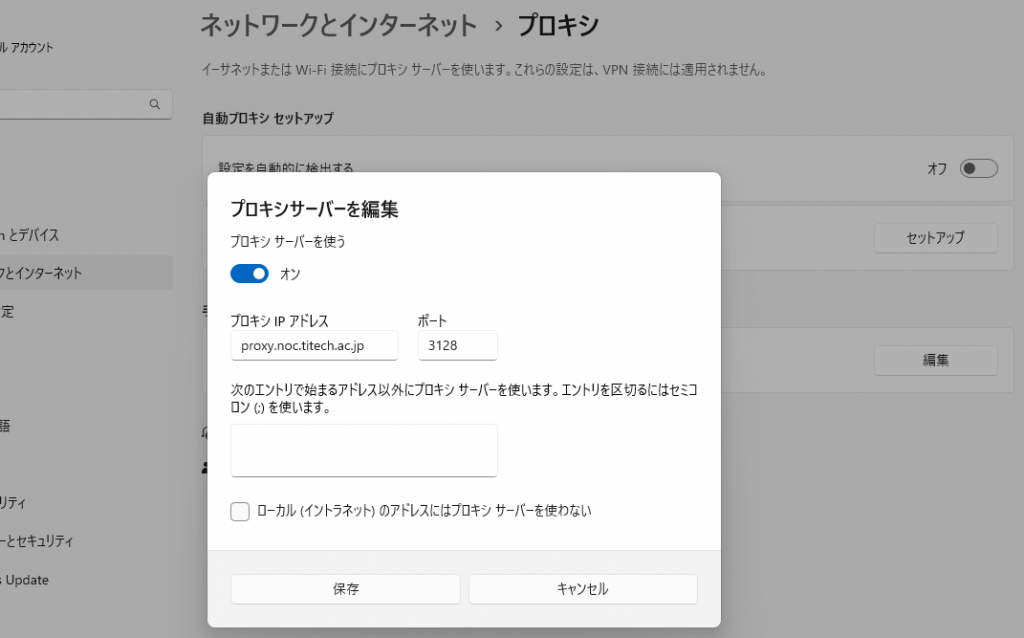
When accessing on-campus resources, it may be better to connect directly without going through the proxy. For example, if you use the proxy to access servers or services restricted to access from within a particular School or department, the access will appear to come from proxy.noc.titech.ac.jp and you will not be able to view them.
To access servers directly from the client without going through the proxy, list the destinations you do not want to use the proxy for — separated by commas — in the "No Proxy for" / "Bypass proxy" field, such as xxx.yyy.titech.ac.jp, 127.0.0.1.
When using the campus wireless LAN, please be sure to turn the proxy settings OFF. Otherwise, the authentication screen may not be displayed and other issues may occur. (This is a specification of the campus wireless LAN authentication.)
When using the network outside the university, please turn the settings off. They may cause communication issues.
When Used as the Upstream Proxy Server for a Department or Laboratory Proxy Server
When operating a proxy server on a department or laboratory subnet, please appropriately restrict the range of access permitted and, in particular, make external access from outside the university impossible.
Request to Restrict the Use of Proxy Servers
We ask administrators who operate proxy servers to make external access to those servers impossible.
If the use of a proxy server is not appropriately restricted, the following problems may occur:
- Even web pages restricted to viewing only from within their own domain can be viewed through the proxy if a web proxy server in that domain allows access from outside.
- Exploiting the anonymity that hides the client host from the origin server, the proxy may be used as a stepping stone for unauthorized access.
Note that some HTTP servers have built-in proxy server functionality (such as Apache's mod_proxy), and due to careless configuration the HTTP server may unintentionally function as an open proxy server without proper access restrictions. Please be careful in your operation, such as conducting periodic checks within your organization.
Please also be sure to check the documentation for each proxy server at your organization regarding how to configure access restrictions.